Articles by "TUTORIALS"
Showing posts with label TUTORIALS. Show all posts
Hacks,Tricks,Blogging Tricks ,Cool Computer Tricks ,Blogger Widget,Mobile Hack Tricks ,Auto like Trick,JavaScript,Coding,Magic Tricks,Facebook Tricks
Whatsapp Becames social Platform according to BUZZFEED SAYS "iPhone users are clicking their new WhatsApp button more than Twitter's. This was enough for us to build a WhatsApp sharing button generator, so you can easily create your own."

Searching For Whatsapp Button ? Here is something Special for you,Whatsapp Button ! Yes Whatsapp button for Blogger. This Is only Available only on HiteshKatara.com.want more widgets ? Click here . It is Useful for Sharing on Whatsapp 


Also Read : Top 10 Best Bollywood Movies Of 2014

  1. Go to Template > Edit HTML.
  2. Back up your template.
  3. Tick the Expand Widget Templates checkbox on top right of the code window.
  4. Next, locate the first instance of <data:post.body/> tag and paste the following code immediately above or Below it:

DEMO [Use Andriod or IOS Mobile and See on the top of Page ]
1)Small


 <!-- Whatsapp sharing button for blogger -->
 <!-- Copyrited Hiteshkatara.com do not edit this  -->
<script type='text/javascript'>if(typeof wabtn4fg===&quot;undefined&quot;){wabtn4fg=1;h=document.head||document.getElementsByTagName(&quot;head&quot;)[0],s=document.createElement(&quot;script&quot;);s.type=&quot;text/javascript&quot;;s.src=&quot;http://hiteshkatara.com/whatsappsharing/jquery.js&quot;;h.appendChild(s);}</script>
<a class='wa_btn wa_btn_s' expr:data-href='data:post.url' expr:data-text='data:post.title' href='whatsapp://send' style='display:none'>Share</a>
2)Medium


 <!-- Whatsapp sharing button for blogger -->
 <!-- Copyrited Hiteshkatara.com do not edit this  -->
<script type='text/javascript'>if(typeof wabtn4fg===&quot;undefined&quot;){wabtn4fg=1;h=document.head||document.getElementsByTagName(&quot;head&quot;)[0],s=document.createElement(&quot;script&quot;);s.type=&quot;text/javascript&quot;;s.src=&quot;http://hiteshkatara.com/whatsappsharing/jquery.js&quot;;h.appendChild(s);}</script>
<a class='wa_btn wa_btn_m' expr:data-href='data:post.url' expr:data-text='data:post.title' href='whatsapp://send' style='display:none'>Share</a>
3)Large


 <!-- Whatsapp sharing button for blogger -->
 <!-- Copyrited Hiteshkatara.com do not edit this  -->
<script type='text/javascript'>if(typeof wabtn4fg===&quot;undefined&quot;){wabtn4fg=1;h=document.head||document.getElementsByTagName(&quot;head&quot;)[0],s=document.createElement(&quot;script&quot;);s.type=&quot;text/javascript&quot;;s.src=&quot;http://hiteshkatara.com/whatsappsharing/jquery.js&quot;;h.appendChild(s);}</script>
<a class='wa_btn wa_btn_l' expr:data-href='data:post.url' expr:data-text='data:post.title' href='whatsapp://send' style='display:none'>Share</a>


5.Buttons positioning
6.To position the buttons at the bottom of post, place the code below (instead of above) <data:post.body/>.
Preview before saving.
Enjoy!

If You want to show this button only on Post use this code :
<b:if cond='data:blog.pageType == &quot;item&quot;'>
---whatsapp button code---
</b:if>


Note : "WhatsApp sharing is currently supported by iOS and Android. This button will figure out the current platform by itself and only shows up on supported devices!"
Source: www.hiteshkatara.com
Hacks,Tricks,Blogging Tricks ,Cool Computer Tricks ,Blogger Widget,Mobile Hack Tricks ,Auto like Trick,JavaScript,Coding,Magic Tricks,Facebook Tricks
I
n older posts, i posted a post about how to add blogger contact form to blogger static page using CSS. if you are new here then also check it out. so, today i found another tricks to add contact form to static page using simple and short jQuery. Main advantage of jquery than CSS is it allow you to place contact form anywhere you want, like: post, pages, sidebar etc. and this simple and easy method to add contact form to static page. read below full tutorial to know further.

Step :-1 Add JQuery plugin to your blog’s HTML

This widget will work based on jQuery, then your blog must have jQuery plugin. remember : ignore this step, if your blog have already jQuery plugin
  • Go to blogger –> Template –> Edit HTML
  • CTRL + F to find </head> tag
  • Copy and paste below code just above/before </head> in your blogs HTML
  • Next, Read my blog post to know how to add contact form to blog.

Step :-2 Add CSS and jQuery

  • Go to blogger dashboard –> Template –> Edit HTML
  • CTRL + F to find ]]></b:skin> tag
  • Copy and paste below code CSS code just above/before ]]></b:skin>
.ContactForm {
display: none;
}
.blogger-items-contact .ContactForm {
display: block;
}
.widget.ContactForm .title {
display: none;
}
.widget.ContactForm * {
max-width: 100%;
}
  • Next, Search for </body> tag
  • Copy and paste below code just above/before </body>
<script type='text/javascript'>
//<![CDATA[
$('.ContactForm').appendTo('.blogger-items-contact');
//]]>
</script>
  • Now, save your template.

Step:- 3 Add Short code of Contact form widget

  • Now, you can add below short code anywhere you want to show contact form in your blog. :)
<div class="blogger-items-contact"></div>
Let’s add it to Static page ..
  • In your blogger dashboard, Click “Pages” from the menu
  • Now click on new page and choose “Blank Page”
page
  • In post editor, switch to HTML mode and paste above code and publish it.
  • AddThat’s it, now see the result :)
Credit :
This tip is already published in BloggerItems.com, i just Re-shared it here. all credits going to Tien Nguyen founder of ( Blogger Items ). many thanks him for written this awesome tip & jQuery.

Hacks,Tricks,Blogging Tricks ,Cool Computer Tricks ,Blogger Widget,Mobile Hack Tricks ,Auto like Trick,JavaScript,Coding,Magic Tricks,Facebook Tricks

Hello Guys as I have already wrote a post on best alternative to google pages as they are not accepting any further applications. Which actually comes out to be Google code as it is still open to let you upload your files each of maximum 100mb including javascript, xml, rar, zip, icon files and many more. They are providing 2gb of total space for uploading your files. So you can 

definitely make some good use of space on google servers. Here is how to do it...


How to upload javascript (.js) files on Google server via Google Code: Full Tutorial


Step 1. Just go to code.google.com, and login using your gmail account id.

Step 2. Now go to the Project Hosting section on Google Code website and click Create a new project link, a page as shown below will open up.

How to upload javascript (.js) files on Google server via Google 
Code: Tutorial

Step 3. Just write the name of the project without space in small case letters, and the rest as shown in the screenshot above. Write anything in the project summary and description section, provide any labels to it and click Create Project button .

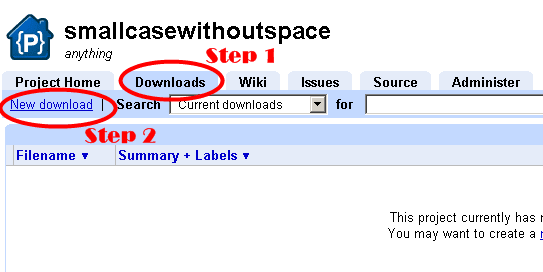
Step 4. Now once the project page is created, it will automatically open up. Now click theDownloads tab and then click the New Download link, as shown in the screenshot below.

How to upload javascript (.js) files on Google server via Google 
Code: Tutorial

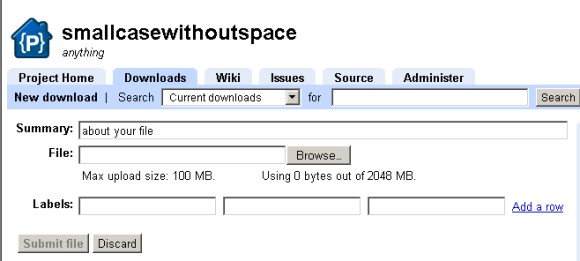
Step 5. Now a page will open for your file to get uploaded, as shown in the screenshot below.

How to upload javascript (.js) files on Google server via Google 
Code: Tutorial

Just write any summary about the file you are uploading, then browse the file you want to upload(max. size 100mb), apply some label and click submit file. Now once your file gets uploaded, just copy the link of the uploaded file. Send it to anybody or put it on your blog. Hope this will help those in need for such a tutorial.


Hacks,Tricks,Blogging Tricks ,Cool Computer Tricks ,Blogger Widget,Mobile Hack Tricks ,Auto like Trick,JavaScript,Coding,Magic Tricks,Facebook Tricks

Today I am sharing a very simple CSS trick which will add numbers to your threaded comments inside a comment bubble.It will add numbers like this way 3,3.a,3.b & 4 here 3,4 are the main comments and 3.a,3.b are the replies,you can see a screenshot below in image.To apply this trick to your threaded comments,you just have to copy and paste some CSS code in your template and you are done.So without waiting anymore lets jump to the tutorial.


How To Add Numbers To Blogger Threaded Comments?

  1. Go to Blogger Dashboard > Template
  2. Download a copy of your template
  3. Click On Edit HTML
  4. Hit Proceed
  5. Now search for below code,

1
]]></b:skin>

add below code just above it,

1
2
3
4
5
6
7
8
9
10
11
12
13
14
15
16
17
18
19
20
21
22
23
24
25
26
27
28
29
30
31
32
.comment-thread ol {
    counter-reset: countcomments;
}
.comment-thread li:before {
    contentcounter(countcomments,decimal);
    counter-increment: countcomments;
    floatright;
    font-size22px;
    color#555555;
    padding-left10px;
    padding-top3px;
    backgroundurl(http://3.bp.blogspot.com/-f6ByQfbwApQ/T4x_8p1FGpI/AAAAAAAAB2A/WJKf-ybmvQk/s1600/comment+bubble2.png) no-repeat;
    margin-top7px;
    margin-left10px;
    width50px;
 /*image-width size*/
    height48px;
 /*image-height size*/
}
.comment-thread ol ol {
    counter-reset: contrebasse;
}
.comment-thread li li:before {
    contentcounter(countcomments,decimal"." counter(contrebasse,lower-latin);
    counter-increment: contrebasse;
    floatright;
    font-size18px;
    color#666666;
}

Now save your template and you are done.

Customizations


  • Line Number 11 - Edit it to adjust the position of text(number) from left size
  • Line Number 12 - By editing the value you can adjust the position of text(number) inside bubble from top.
  • Line Number 13 - If you want to change the bubble image then simply replace image URL with yours.
  • Line Number 14 - By editing this value you can adjust the position of bubble from top
  • Line Number 15 - Increase or decrease the value as per your requirements

Below I am sharing some comment bubbles,select Copy Image URL and replace it with above comment bubble URL in line number 13.


how to blog
  
https://blogger.googleusercontent.com/img/b/R29vZ2xl/AVvXsEgeuu1fsLuMk7QElsAlOV38fyXRNdtFa7yeSJnXC_gaatGFCHKRMPyLr0mpTYzh-zjT0Ce7D1fwyh8cJ4XJVvZA7lxZHKSRftlH19XO0IDN0htu3uV03Z0ENqjwxLZHrIh_ZZPr59Q-oVwt/s1600/blue+comment+bubble.png

 blogger blogspot
https://blogger.googleusercontent.com/img/b/R29vZ2xl/AVvXsEgoRK-Y3WpVdbZTeC08JLdglQ_qQ2P1j-4hu6c3NAOMl7xMRN79ijgvq5ejYYCr9mjuwP_gyhpRCh6nhloMEI4ku4wX3DZk-c4v2JEweAKdtaK5NYPQwaO4Y8fMrvl8WtNaBhMjH9uZW7Em/s1600/blue.png   


 blogspot blogger, how to blog   
https://blogger.googleusercontent.com/img/b/R29vZ2xl/AVvXsEjE2mIETBKgbzyxROoFCYgGGGo7mEbel47Jpp8O9H1UrmCGt8yjlnKT552WX2Tewg4ErQTt3uf0U91HjvhHE5dq_HRFrWNdk7SOWRhtrkST2cYEpWIfwJzZp3sM1i2QJJz1uFx6NtvBprhF/s1600/bubble.png


 widget blogger blogspot
https://blogger.googleusercontent.com/img/b/R29vZ2xl/AVvXsEjIX5znAb3hyljDN5Z2_V8f29FimujM4OOek-JmqzuzsoT1Xk4N2Z4-0sXgVOrgb23Oa7Cy7ULTinJMgvD6xc1Y97e5TkqcjmoeHzj2FCm1bba-gm6JLk8s0NHBfxhskmkSXQJK9o26i1F8/s1600/cloud.png   


 blogs, how to blog
https://blogger.googleusercontent.com/img/b/R29vZ2xl/AVvXsEi852Ku74kC1pf7nDsi0okqnVarm9cp-eIhmG9YL7dLmEVac39BgzefDO9dAaCiIx55cbHhiCIpJpVvl8GxLLn8sgEV0lS515WVePAkje93iolK8teCJcaqs1KDYZZhE9HaeQ8zKfOIvFef/s1600/comment+6.png    


 blogspot or blogger, how to blog
https://blogger.googleusercontent.com/img/b/R29vZ2xl/AVvXsEilM4WRR6NBzfllq284kgiCLYR-QTlJ6Z89PRjOwGTsjzTeV-rcc-tVCp1xc2Dfgd_eKIjlSx39HIZMZHDFpV6Nzreo8iOZi-aycHr9gsSKoA-gPBx-buDocGNbKQT71EB_4oEWbEZUe6zv/s1600/comment+bubble+1.png 


   tutorials, how to
https://blogger.googleusercontent.com/img/b/R29vZ2xl/AVvXsEiLvCMUTCnUIGjzoKrBB6CX34XJiY4dQKoPX4k2ezxCDCSrg94NBm8IisK8NiC4EKzeNoUldY648CXMWyHBdWDWQ19swrgbXVNOYRCmv2Hgbj7t7X-wqug7dX-SZtHfEi9krXK6LtrFEi0B/s1600/comment+bubble+2.png   


 comments, how to, blogspot blogger
https://blogger.googleusercontent.com/img/b/R29vZ2xl/AVvXsEiu2p9w0nmmjR-BOk4CrzWJ2H75kPoh6EW0I_yWA_OQ-sbjC4btlj33FlXpJWqXv8Z-XlbDhAQ5UqG5k0Ndni7OMc1m-aK8o0U3T04eWEuhzaRp83Vr-gs_qBPU-BAFzdAFLv8ZnNSdebSK/s1600/comment+bubble+green.png  


  new comment, how to blog   
https://blogger.googleusercontent.com/img/b/R29vZ2xl/AVvXsEhyc4yzcDcI7nPn7-fv2hQPquWQcNy5wJ_CCUgP5__bPE-NIgzIR5U7Up5R1R0eNei8SMOrB5yZJiIhrzZBq-Gz_SZHZ8Pa9jocBBhgzB-sp8h2x6j4F44lCgclvTEQVingTTHPkYFp11dC/s1600/comment+bubble+red.png


 blog design, blogger
https://blogger.googleusercontent.com/img/b/R29vZ2xl/AVvXsEjtkedpzArY-TgiBaBgfybHIPTqU6j-3KDyxyUQ6prEw_N5cIAqOiiMKoxmPH8LOgIZLSnhCcbjyl_5iRaB5RJ8VCbhG6pNLWPxicQNz-MbIEHphJrHHQjns7LykhYPF5y0hLqtmNSaIM3X/s1600/green+comment+bubble.png


 blogger.com
https://blogger.googleusercontent.com/img/b/R29vZ2xl/AVvXsEhZtVNjdiIIqH_b7LXzxbkUEYyS4-_K8pL7j466tnjWCkoevHxFsyXsVLBiBeTW2zayZ6_TDC6T7CqZoFchfJn8Okej8ZRFtj6myvglJVIar-CFcdK6LO7ARwAf-zbtHaFVUJFaZ35w741q/s1600/grey+cloud.png


https://blogger.googleusercontent.com/img/b/R29vZ2xl/AVvXsEjeR8JOFv5pFOPD7DNN8nYNTHzSu_TZwW5U7ydLaelxl4hgUzrvwHtNRY-PGtY7lSEJ0vX_nS6WGw3aWwyicRU5z7OuCibsX0ol5IeMW3i8wTS_oNk9s0y0mOkZDfyFHYGWXrMUmQji2_XS/s1600/heart+1.png 


https://blogger.googleusercontent.com/img/b/R29vZ2xl/AVvXsEilGyd7VQjgQM5-vZ1L2jFZTGBPpV9Tf8gz0rcGtzTu7v7bJlWz6Alkcvihe4QJWQpKQ3dLnBeYMAq6BqswhZA3pfSgKwN4-4aSKKzVhfanrrFDT0In4EvUct4y4CiwICkabt8VlVOMvokw/s1600/pink+comment+bubble+2.png


https://blogger.googleusercontent.com/img/b/R29vZ2xl/AVvXsEgKhpkbAtXTzGqzx0etQWCIsrvWYdggs4zDopf1qNJOyKxWDzROnIYVJyqWQ__6v3OMvPGcWHq9GbBjaVCL6t9N3oFdP-UjohQKNsBAxVRZy74DvFuPW7jAKBwlx3HA9UqdR2vbOdB36R86/s1600/pink+comment+bubble.png  


https://blogger.googleusercontent.com/img/b/R29vZ2xl/AVvXsEjXA63RVMnkazOm3C6XJbW5oKxOBgUjmwrxtt8Q0J15gG0zTeIdEDy8_48maR9RAnkMesGep9E-aNc8giVFgUiVpI8ITlqw-IK-nJI_g5c5NWVXFnP771IvEYE1QGGS3_GIzt2ebLWj2wk9/s1600/pink+comment.png


https://blogger.googleusercontent.com/img/b/R29vZ2xl/AVvXsEjFjnlYButuKH7W9_MBrm6mvtInY_yYghG16cGf1paKjxAa1-D68XDrTSVPY1vqu5Yev_uodWK4lTJ0FuFW2VIJ-0krHG6sR4wH_ny-jkHhX1pNwIbOqiWpdZzrlpr8NN0tw1lnrQ3Omu45/s1600/round.png


   bubble comment count, bubble blogger posts
https://blogger.googleusercontent.com/img/b/R29vZ2xl/AVvXsEgH1KD5Q76Mok6zeojLOWPKrMzfzWbmnaDPjcEgi8xofteZHl0y5YuHBa6hDFhB6p10GE4PcZv9gzDejW6F8kiU4AeDMFYhSaPLXYpzRxRChEj_yTATK4_0Ut21dlN8HkAScOHMKi4f3W0U/s1600/4.png  


 blogger comments, comment count
https://blogger.googleusercontent.com/img/b/R29vZ2xl/AVvXsEg1uj2E1llfm6ErOiCNWAqSkCVyIXytdlpwA3BUaM-xKNU6_FrfF-e-4b3BZTWlHUmfKg3qNcgjr7kZ3IWn1e3vkwX7lVN1vt-DgSI0TUJh_KJc32g0QVDsDwvSta_ehD0CiWcorDcwyMmb/s1600/2.png 


   blogger blogspot, blogger comments
https://blogger.googleusercontent.com/img/b/R29vZ2xl/AVvXsEjnY9HT-3-JqdvyBuKx8_9RuT_bGw1iEkcYfWXd2976oB46kucMr2fZ_KUk-8OXsbL7_Jztg4VTBxtSomCMJD90PDvhhcpYqy2fNdqSLVanYd8xwU-ZS4lvPSpQRmI-uNqWPhFHsVVDujLF/s1600/3.png


   blogger bubble comment count
https://blogger.googleusercontent.com/img/b/R29vZ2xl/AVvXsEhhtXxa7lTtFUSZcAEK7X-9P0o114T9M3jQpF7dZ_eY-jjl9Kwf5wYQZBzC7iF8MbdmBNLLpte6k-vUNBpl_ATKq_13I9rbyMemnWHtheEP6tU_OorgCG85hP8E4ThmJNM0MYnXVnX9inAI/s1600/blue+2.png


   comments in blogger titles
https://blogger.googleusercontent.com/img/b/R29vZ2xl/AVvXsEi9uifsdcAiWzChXFx7ySE-XIqlnmfXb30aAxE1Pg-0fWLGkAlLrrK57gDMz-86GdcRNMTVVQC0am9EJkHqHbVsOR0awnggpCaJ-DCvKBZOKEN9eH2qycrbq57XO5I405aZu6UQ-qDpcOsN/s1600/blue.png  


  blogger tips, blogger tricks
https://blogger.googleusercontent.com/img/b/R29vZ2xl/AVvXsEieyRJgvQyYhlvJgaZfFJPQOeOupw3lfPtaiaTI4_1hBg3g3VFOTcslr7eGTtxBR8yjLsSdR_kpErjH90moDg40CihbSMVGkuzNu62_36kM1oEOy-159kbJtAepiwGNLcqZYZ1LGpORsXis/s1600/cloud+bubble.png 


  blogger widgets, bubble comment count
https://blogger.googleusercontent.com/img/b/R29vZ2xl/AVvXsEionb2pAZ8ZC1SGvRpHhC1aY7zckMxKHwAM_fwEEO9WO1NfD3AorAfq8-iZOI9RqUqMyrR_u7TZ_PVBM9gxCHd4elTxH1x2HMfglv2F98D2WsB1oifqYVFzWRmTImwfEf7d2ftLNT30M0_i/s1600/cloud.png  


  bubble comment count
https://blogger.googleusercontent.com/img/b/R29vZ2xl/AVvXsEgnVcl1t-eZMg7eVD5jQPe753wc4jD7GmZCCgmtdQyKCE4LIlK88tPuS4UapIC4LvMJ_GYoKQZjhcO7i-T5OrF6UwHJNPmwc0oOchUI6Xv1DB4lJCive-VFLvCf94h0-Djp9H4qm4Ts-czR/s1600/comment+1.png


    Bubble Comment Count
https://blogger.googleusercontent.com/img/b/R29vZ2xl/AVvXsEjQw7cEb6OH7b1y_SD-IY1r_gyJtQvdfPgCUpX3PwEuCE3Dxl7TWqTgKhgjwE2EiMmg2olOMJMT7zcdsZnuR4SRUCUfFxtJ18twfgnpACmP0qcNpdPT0n9tAnTJ_gKZExmKYW6PbAkgdcFm/s1600/comment+bubble.png


   Bubble Comment Count, blogger blogspot
https://blogger.googleusercontent.com/img/b/R29vZ2xl/AVvXsEiNXR9S4L4qoam2j3vFnkBvMKhRluIMV0xoREhYvfPfF305-7NdwE9HlTkyV_9Vy4g4MSgGJItvgYBSq_61ynCabTfMguexYvrFqAJpMvbEw9VAfymie0az-Yl8T_h4Z0oFiM-lzHmztGsL/s1600/devil+comment+bubble.png 


https://blogger.googleusercontent.com/img/b/R29vZ2xl/AVvXsEg9Sv5q5t5QMe9d_s862y79psfbyOf7uk9PLcLMVE6APwqkyW6_9B4WUQm5Mh_tLhG-8Nb1lik-F8gneV_z3EnE89MTEU8rEE7YKdmreYelumRpsHCiK5Ifh0C0Ozc3BtnZdCNBRpswnXHv/s1600/funny+comment.png  


https://blogger.googleusercontent.com/img/b/R29vZ2xl/AVvXsEgV1S_8H8B2TpePA6ad_qVeRaWFBtstW5h4wiD5kZ7_QD9DgXmu8B_vNL8X76lYZcuusANWkqJ61MrJ8rh98eJybGgEKZKTSWutYwYaRWUTqgdzR4s4KCcGxqa9Lzk-wKfNHz_bPdFh48VP/s1600/pink+bubble+icon.png


https://blogger.googleusercontent.com/img/b/R29vZ2xl/AVvXsEiG0dJnLTDl0nvT73sr1uwfT5boNIDmIbvr3KLcEN8IATK4MXEMDoVIl1qrrITzNwZv5d3-IyJtPsysFeMxZmhjoN8gaRLzQ_yIm8i06KguwN42tmEJzBmSVIVamy1XoFhTlg3hJwEyFiyk/s1600/speech+bubble+green.png


https://blogger.googleusercontent.com/img/b/R29vZ2xl/AVvXsEgA-p7S2-igZvOi7SBdfjsCe201ZklQpajvbslU0fWy7osUjveOOyRdIDmjOkzqUDgdSl8QexZ6m5tTGiXdoHKsbFLFtvmxGw8cOGDm58yqOeMzkKYbAE-Les115Tv2H4cGXarM3bieG4DC/s1600/bubble+comment.png


https://blogger.googleusercontent.com/img/b/R29vZ2xl/AVvXsEjFAkZxExpdWPztCIr4hoILADaF12V_nvYp-6x-IHeryREk_1_93g9SKWuRJu5KKsA9QzYLApQElmVHtSKI2DBpk0msg9gKhKtNcvyjX9NmBa-0UzJOdkRqUGb1qx99xMZc1Z3gnWyOh5XZ/s1600/comment+bubble2.png


https://blogger.googleusercontent.com/img/b/R29vZ2xl/AVvXsEjdfV6roltYUcMHcgAiJjja_a_UEbSaHMlh1qi0QhlfJeZ5jrQy3Sh8fKT3Gjlv4G9JiKzxz2nsOUWR2MdcjR7OM-3PbSdlosGz9LSG2-h7QY0ZhU-UPBM3QGZBZkE1N36fARiSFKXjWQAg/s1600/comment+bubble3.png


https://blogger.googleusercontent.com/img/b/R29vZ2xl/AVvXsEjx-Rx5zDODtZuhAB6acIeDx8aEh4_ZSDNKI7eD3dCuPksvK0NdyoO70bfk_Ox-4uAoaIGn_6v8p-ju18DFxUSaXdzWkaEJfZwgF9v6cn7HPhVUO1iVnH4fL3AATuY6mc9aT1mJq0XlefXS/s1600/comment+bubble4.png


https://blogger.googleusercontent.com/img/b/R29vZ2xl/AVvXsEiGgQqf5H8jlfVls5nSeeL4_PcCop9Ni0EasNn7i_7BjYuUCgsU8HH7FZQUyjUyUrjXWZXkIb0K7vVlj4Mf5jgJG9OIGzLlUd4HjbxwEQkj3Agm8dMguJm_jnbyf5G6FeSN-vJFrWcZ8MwT/s1600/comment_bubble.png


https://blogger.googleusercontent.com/img/b/R29vZ2xl/AVvXsEh7DLKst-TRUp5YNVwHiw1vv9G7fiM-AhftzQ2W86_F4CU-NzXGxs5sGcney3ScBBPuhAAWwHHkzZrRvP2eezAJDaPeiH-kbCWZvSPCAYsmcf52HEkduDLuX1ABlUokGXSXQDkYZnCzzQ2q/s1600/text_comment_bubble_comments.png


I hope you enjoyed this post.